
Canvas By Instructure
InstructureEducation
4.528.57K Reviews
- Version
- 8.12.0
- Installs
- 10.00M
- Age Rating
- Everyone
Screenshots
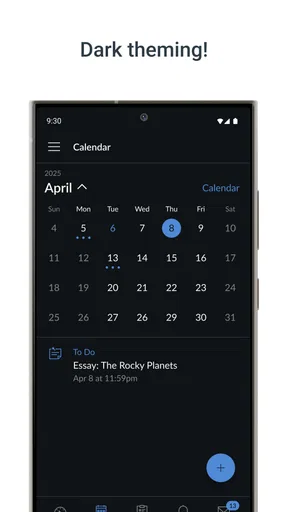
Our Review of Canvas By Instructure
 Analysis by Appyee
When a course is spread across announcements, email, shared documents, and several browser tabs, it is surprisingly easy to miss one small deadline. I found Canvas most useful when I treated it as the daily control panel for my classes rather than as a complete replacement for every study tool. It brings course information, grades, assignments, and submission tasks into one mobile space, while also letting me keep working with course material when I am away from a reliable connection.
That focus makes sense because Canvas is an education app from Instructure, and it is free to use. It is rated for Everyone, runs on devices using iOS 9 or later, and the current version is 8.10.0. The app has been available since December 22, 2012, and its scale is easy to notice: it has passed 10 million installs, with an average rating of 4.5 from roughly 224 thousand ratings and about 28 thousand written reviews.
From a scattered course list to a workable study routine
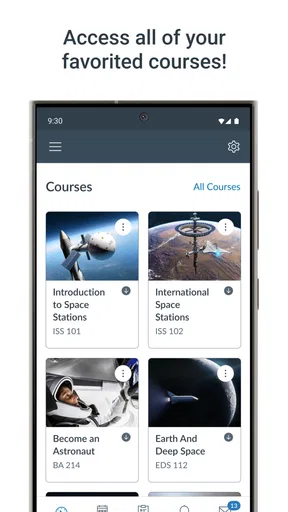
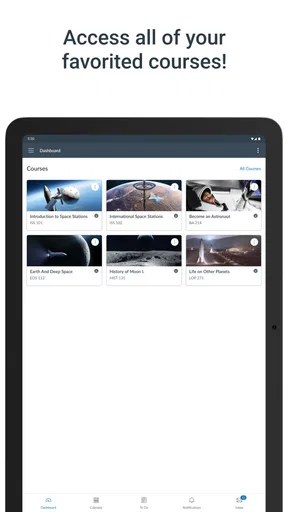
I use the course list as the starting point, then decide which class deserves attention before opening individual tasks. That small pause helps me avoid treating every update as equally urgent and turns a crowded course hub into a more manageable routine. Next, I look at how the app behaves when several kinds of study activity compete for attention, where preparation and prioritization matter more than tapping quickly.
Starting with the information already in your course
Canvas is not normally the place where I decide what to study from scratch. The useful starting condition is that a school, college, or training provider already uses Canvas for its courses. Once I sign in through the relevant course setup, the app becomes a way to inspect what has already been organized by the instructor or institution.
That distinction matters. If a class does not use Canvas, downloading the app alone will not create a course workspace. It is designed around existing course access, so its value depends heavily on how consistently the teaching team uses the platform. In a well-organized class, I can move from the course list to current instructions without hunting through old messages. In a poorly maintained class, the app can only display the same gaps that exist in the course itself.
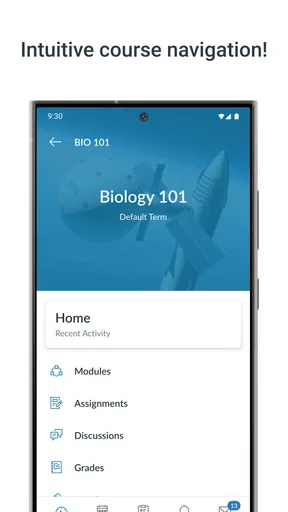
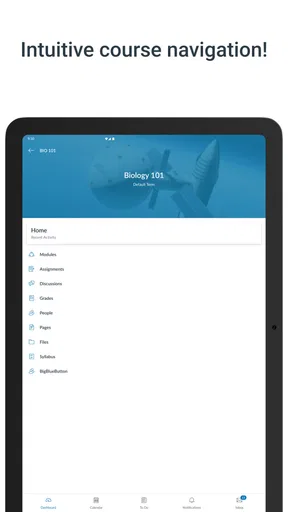
I recommend beginning with a quick tour of each course rather than immediately opening the first assignment. I look for the current module or learning area, recent announcements, assignment instructions, and the grade view. This gives me a sense of where the instructor expects students to begin and whether important context is placed in a module, an announcement, or inside an individual task.
The first useful habit is to separate “available to read” from “something I must submit.” A course may contain readings, discussions, quizzes, files, and assignments in close proximity. Canvas makes those items accessible, but it does not remove the need for personal prioritization. I use the app to identify the next action, then keep a short note of what must be completed, what is merely reference material, and what needs clarification.
Turning the course view into a step-by-step plan
My usual workflow starts with the course list, moves into the relevant course, and then narrows down to the task that has a real consequence today. I read the full instructions before opening the submission screen. This sounds obvious, but mobile screens encourage quick tapping, and assignment requirements can be easy to skim when I am standing in a queue or switching between apps.
After reading, I check whether the work needs an uploaded file, written response, or another type of interaction supported by that course. I then prepare the actual work in the format that makes sense for the task. For longer writing, I prefer drafting in a dedicated writing app and returning to Canvas when the content is ready. That approach gives me better control over editing and reduces the risk of losing a long response because I navigated away at the wrong moment.
For a short response or a quick check of course material, working directly from the phone can be convenient. For anything involving careful formatting, extensive research, or multiple source files, I find a laptop more comfortable. The mobile app is strongest at moving a task forward, checking status, and handling short study sessions; it is less pleasant as the only workspace for complex academic production.
One non-obvious advantage is that I can use small gaps in the day for preparation rather than pretending a phone is equivalent to a full desk setup. I might read an announcement on a bus, review an assignment requirement during lunch, and then complete the substantive work later. That division keeps the app useful without forcing every stage of study into a small display.
Using offline study time without confusing it with submission time
The offline capability is helpful when I know I will lose connectivity. Before leaving a dependable connection, I open the course areas and material I expect to need. That gives me a better chance of reading during travel or in a location with unreliable service. I see this as a preparation step, not a promise that every course action will work without a connection.
The important trade-off is that reading and reviewing are different from sending work to an instructor. I plan submissions for a moment when the connection is stable, then wait for clear confirmation that the task has been accepted. Offline study can protect a revision session from interruptions, but it does not remove the need to verify an online handoff.
This is also where a simple personal routine helps. I save or note the exact task I am reviewing before going offline, and I avoid assuming that opening a page once means every linked item will be available later. Canvas can support offline study, but I still treat connectivity as part of the submission plan rather than as an invisible detail.
Submitting work with a deliberate final check
When the work is ready, I return to the assignment and inspect the instructions again. I check the selected file or response, review the content where the interface allows it, and make sure I am acting on the intended course item. On a phone, a last check is especially worthwhile because similar assignment names can be easy to confuse when several deadlines are close together.
I also prefer to submit from the same device or connection that I have already tested for the task when possible. If I prepared a document elsewhere, I confirm that the correct version is available on the device before opening Canvas. This avoids a common mobile problem: having finished work, but not having it accessible at the moment the submission screen is open.
After submitting, I look for the resulting status and keep a personal record of the action when the assignment is important. The app is useful for making the handoff, but my confidence comes from checking that the course now reflects the intended state. If something looks unclear, I do not keep tapping randomly; I preserve the relevant details and contact the instructor or institution through the channel the course provides.
Handoffs between student, instructor, and institution
Canvas is most valuable when several people share the same course structure. The student receives instructions, prepares work, sends it through the assignment area, and later checks the grade or feedback. The instructor or institution controls much of the organization, so the quality of the handoff depends on more than the app’s interface.
For me, the grade view is not simply a scoreboard. It is a way to find the next question. If a result is lower than expected, I look for attached comments, rubric information, or other feedback available within that course. A grade can tell me that something happened, but the surrounding feedback is what helps decide whether I should revise a skill, ask for clarification, or change how I approach the next task.
Notifications can draw attention to changes, but I would not use them as my only monitoring system. A notification may be easy to dismiss, arrive while I am busy, or point to a course area that needs more context. I still open the course itself for important changes. This two-step habit is less flashy, but it reduces the chance of acting on a fragment of information.
Another practical handoff occurs between the mobile app and the browser version. I use the phone for quick checks and immediate actions, while a larger screen is better for comparing instructions with a long document or reviewing several course areas. The two approaches complement each other. Someone expecting the mobile app to reproduce every desktop workflow exactly may find the smaller interface restrictive.
What the finished workflow looks like
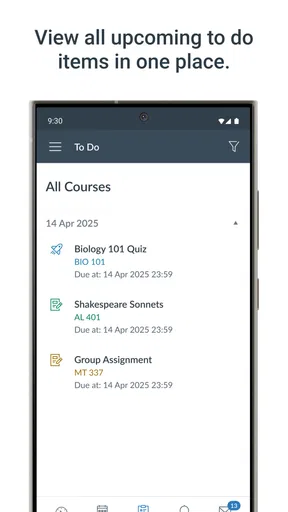
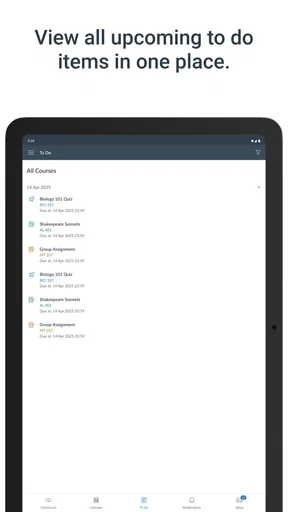
A successful Canvas routine ends with more than a submitted file. I want to know what is due next, whether the current work reached the course, and what the instructor’s response means for my next step. The app helps connect those points by keeping course navigation, assignment activity, and grades close together.
Imagine a realistic weekday: I receive a course update while away from my desk, open it on my phone, and notice that the next assignment requires attention. I read the full task, review the related material during a commute where I have prepared offline access, and make a note of the questions I need to resolve. At home, I finish the document on a computer, return to Canvas to attach the correct version, and check the submission status. Later, I use the grade area to see whether feedback has arrived and adjust my plan for the next class.
That sequence shows the app’s real strength. It does not do the thinking or the writing for me, but it reduces the distance between “I should check my course” and “I know what action comes next.” For students balancing several classes, that reduction in friction can be more valuable than a collection of decorative features.
It is also a useful fit for instructors and institutions in a limited sense: the app gives students a mobile window into the course structure they have created. However, the mobile experience cannot repair unclear naming, outdated instructions, or inconsistent use of course areas. Good organization on the teaching side remains essential.
Where the flow breaks down
The first weak point is dependence on course administration. Canvas can feel excellent in one class and frustrating in another because instructors may organize modules, announcements, files, and assignments differently. If deadlines are buried in prose or important directions are split across several locations, the app may make the information available without making it easy to interpret.
The second issue is screen size. I can check grades, read a short announcement, and handle a straightforward submission comfortably. I am less enthusiastic about using a phone for long documents, detailed comparison work, or assignments that require repeated movement between instructions and source material. In those situations, the browser version or a computer is usually the better choice.
There is also a difference between access and understanding. A course may contain plenty of material, yet I still need a separate note-taking method, reference tool, or writing environment to learn effectively. Canvas is a course hub, not a complete replacement for every educational tool. Students looking for a flashcard specialist, a full document editor, or a distraction-free reading app should choose a dedicated option alongside it rather than expecting Canvas to cover all three roles.
Offline access has a similar boundary. It can make review more practical in poor-connection situations, but I do not rely on it for a last-minute submission. The safest workflow is to prepare offline, reconnect before sending work, and verify the outcome afterward. That extra discipline is a small price for avoiding uncertainty around an important deadline.
Privacy and account management can also feel more complicated than the simple download suggests because access is tied to the course setup provided by a school or organization. Anyone choosing the app should be comfortable using the account and sign-in process associated with their learning environment. If the institution uses a different learning platform, a general notes app or that platform’s own application may be a more direct solution.
Who should use it, and who should look elsewhere
I would recommend Canvas to students whose classes already run through it and who want a dependable mobile way to check instructions, follow course activity, submit work, and review grades. It is particularly useful for people who move between campus, home, work, and public transport, because the app supports quick checks without requiring a full desk setup every time.
It is also a good choice for students who tend to lose track of which course contains which task. The course-based organization gives me a clearer starting point than searching through email threads. The benefit grows when I use it as part of a routine: check the course, identify the next action, prepare the work in the right tool, submit carefully, and confirm the result.
I would be more cautious if someone wants a standalone learning library with lessons already built in. Canvas does not become useful merely because it is installed; the relevant courses and materials come through the connected learning environment. Likewise, students who do nearly all their work on a desktop may prefer the browser experience for extended sessions and use the app only as a companion.
Compared with email, Canvas gives assignments and grades a more structured home. Compared with a general task manager, it has the advantage of being connected to course objects rather than relying on manual copying. Compared with a note-taking app, it is better for following institutional course activity but weaker for building a personal knowledge system. Those differences explain why I see it as the central course doorway, not as the only app in a student’s toolkit.
My recommendation after using the complete workflow
Canvas earns its place on my phone because it handles the moments that often cause academic disorganization: checking what changed, finding the correct assignment, preparing around unreliable connectivity, sending work, and seeing what happened afterward. Its best quality is continuity. I can begin with a course update, move into the relevant task, complete the work elsewhere when appropriate, and return to the same course space for the handoff and result.
The experience is not frictionless. Course design still determines how easy information is to find, mobile screens are not ideal for every assignment, and offline preparation should never be confused with confirmed submission. Those are meaningful limitations, especially for students who expect one app to replace a browser, word processor, study planner, and feedback system.
Still, for the right starting condition, I think it is a practical and mature education app. Instructure has built a tool that works best when I use it deliberately: as the place where course activity begins and ends, while specialized tools handle deep writing, research, and personal notes. If your institution relies on Canvas, I would install it, learn the route from course list to submission status, and make that route part of your weekly routine. The most useful habit is not checking more often; it is checking with a clear next action in mind.
Privacy and Permissions
See what permissions an app requests and how it handles your data.
- Identity
- find accounts on the device
- Contacts
- find accounts on the device
- Photos/Media/Files
- read the contents of your USB storage, modify or delete the contents of your USB storage
- Storage
- read the contents of your USB storage, modify or delete the contents of your USB storage
- Camera
- take pictures and videos
- Microphone
- record audio
- Other
- view network connections, full network access, change your audio settings, run at startup, control vibration, prevent device from sleeping, install shortcuts
Verdict
Strengths of Canvas By Instructure
- Clean, intuitive interface makes course content easy to find.
- Supports assignments, quizzes, discussions, and grade tracking in one place.
- Push notifications help students stay updated on deadlines and announcements.
- Works with many school integrations, including video and document tools.
- Mobile access lets users study and submit work away from a computer.
Limitations of Canvas By Instructure
- Some features depend on how each school or instructor configures Canvas.
- Large courses can feel cluttered when modules and announcements pile up.
- The app may use significant storage when downloading course materials.
- Certain advanced tasks are easier to complete in the web version.
- Notification settings can require manual adjustment for each course.
Other Releases by Instructure
View All
Canvas Parent
Education4.3
Similar Picks in This Category
View All
Duolingo: Language Lessons
Duolingo4.7

Google Classroom
Google LLC2.8

Unacademy: Learn & Crack Exams
Unacademy3.2

Bible App for Kids
Life.Church4.4

Cake - Learn English & Korean
Cake Corp.4.7

Brainly: AI Homework Helper
Brainly4.5
Frequently Asked Questions
What is Canvas by Instructure used for?
Canvas by Instructure is a learning management system used by schools, universities, training organizations, and individual instructors to organize online courses. From the mobile app, students can view course materials, read announcements, submit assignments, complete quizzes, participate in discussions, check grades, and communicate with teachers. The exact features available depend on how the institution has configured its Canvas account.
Can I use the Canvas app without an institution account?
In most cases, you need an account provided by your school, college, university, or course administrator to use Canvas fully. Some institutions allow users to register independently or join courses with an invitation, but this is not guaranteed. Before downloading, confirm that your organization uses Canvas and obtain the correct login details, institution URL, or authentication method required for access.
Does Canvas work offline on Android and iOS?
Canvas offers limited offline-friendly functionality, but it is primarily designed to work with an internet connection. You may be able to view some previously loaded course content, depending on the content type and app behavior, while submitting assignments, taking quizzes, sending messages, and synchronizing progress generally require connectivity. It is best to open important materials in advance and verify submissions online.
Can I submit assignments and take quizzes through the Canvas mobile app?
Yes, the Canvas app supports many common academic activities, including uploading assignment files, submitting text responses, viewing due dates, answering quizzes, and checking submission status. However, the experience can vary by assignment settings, file format, quiz configuration, and institution policies. For complex documents, timed assessments, or tasks requiring specialized tools, the web version may provide a more complete experience.
Does Canvas send notifications about grades, assignments, and announcements?
Canvas can send notifications for events such as new announcements, assignment changes, due dates, grades, discussion activity, and course messages. Notification availability and timing depend on your personal settings and the preferences configured by your institution or instructor. After signing in, review the notification settings carefully and enable device permissions if you want alerts to appear reliably on your Android or iOS device.
